

How to Download and Install Steam on Windows
Are you looking to explore the wonderful world of PC gaming? If so, downloading and installing Steam on your Windows computer is the first step towards unlocking the full potential of your PC. In this guide, we’ll walk you through downloading and installing Steam so you can enjoy the best PC games immediately.
Step 1: Head to the Steam Download Page
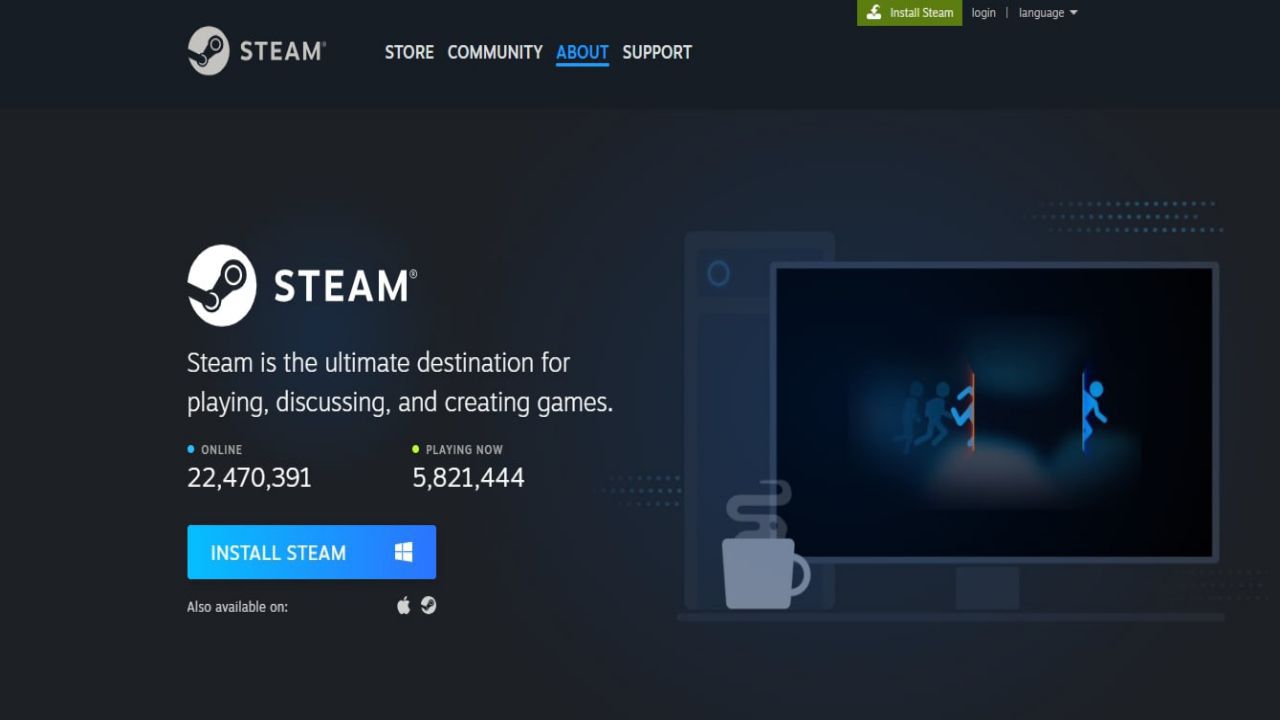

To begin the process, open your web browser and head to the Steam download page. Once there, you’ll see a prominent “INSTALL STEAM” button. Click on it to start the download.
Step 2: Choose the Installation Location
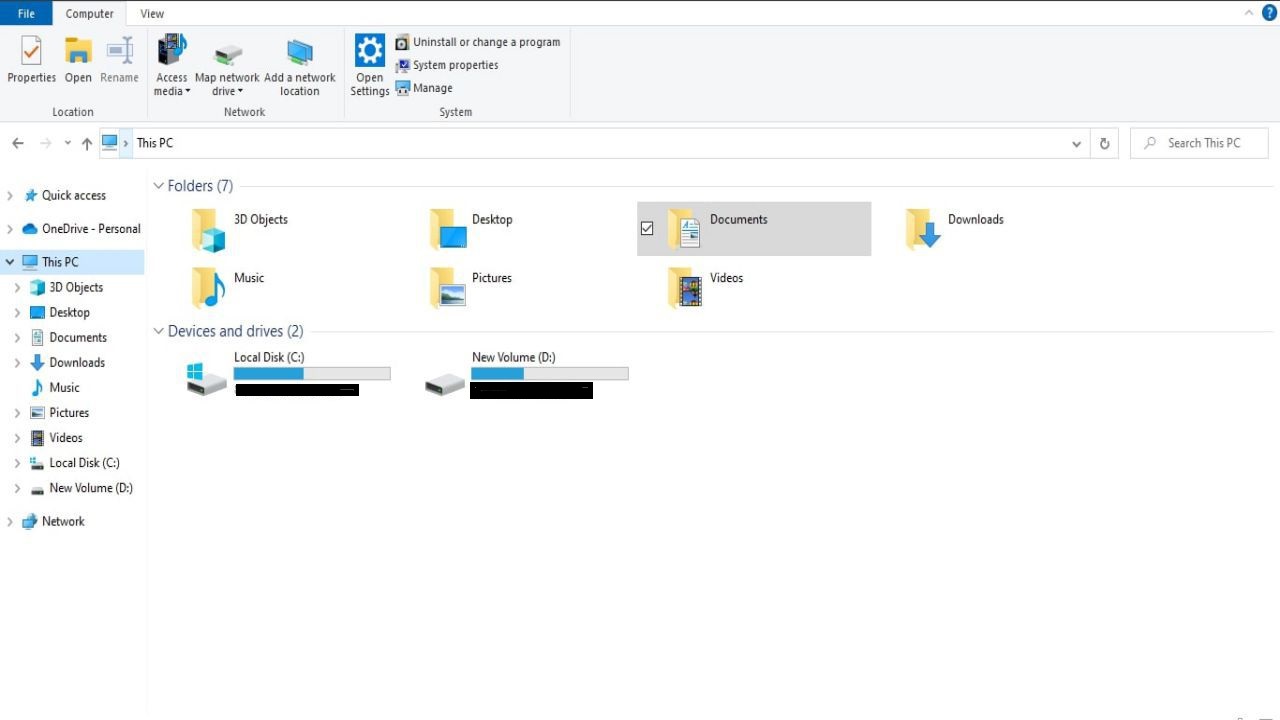
After clicking the “INSTALL STEAM” button, you will be prompted to choose the location where you want to save the Steam Setup file. Select a suitable location on your computer and click “Save” to continue.
Step 3: Open the Steam Setup File
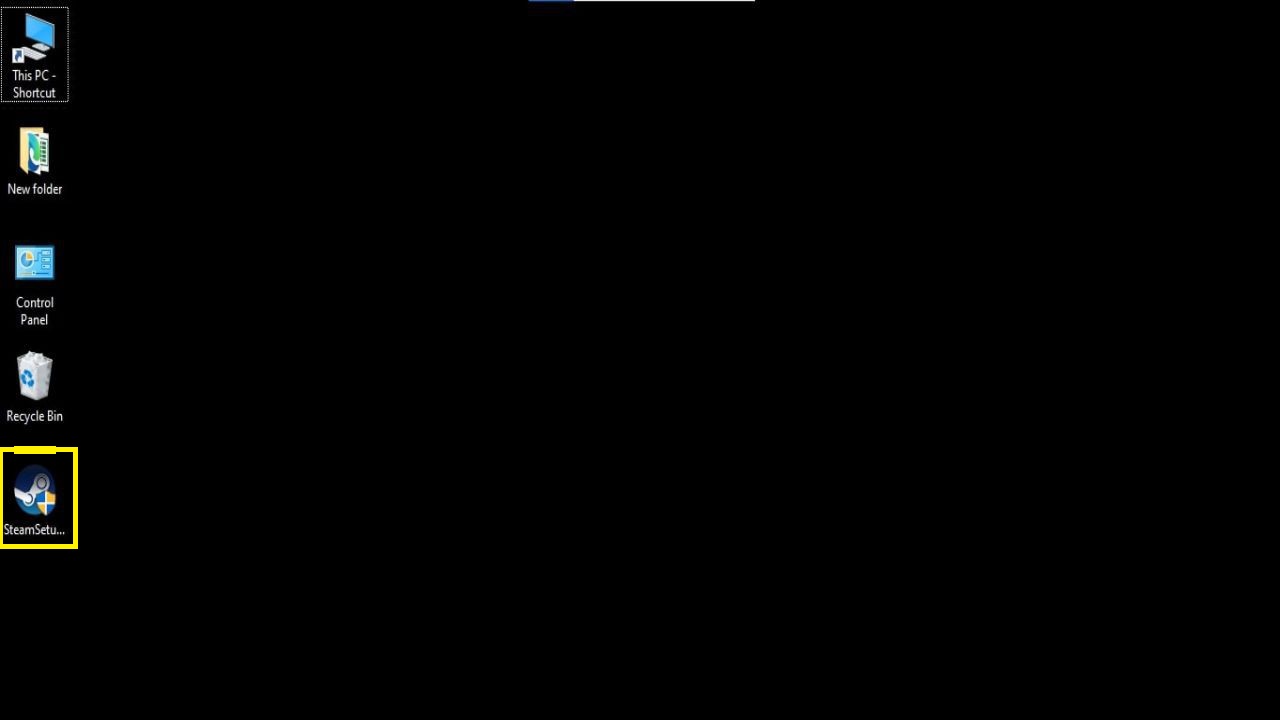
Once the download is complete, navigate to the location where you saved the Steam Setup file. Double-click on the file to open it and initiate the installation process.
Step 4: Configure Installation Settings
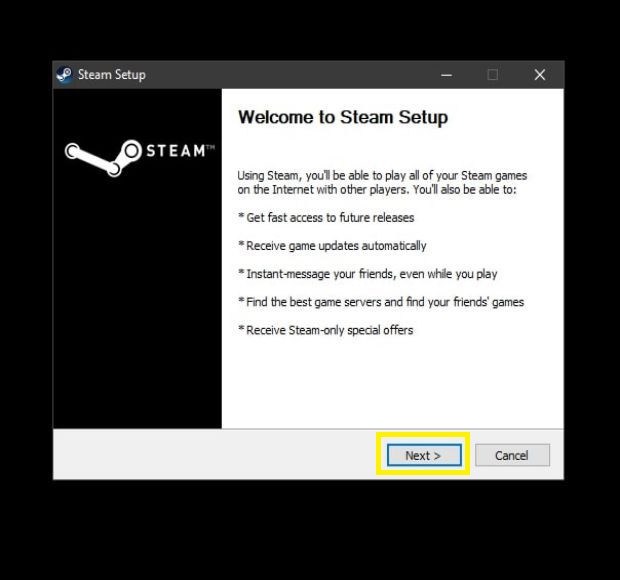

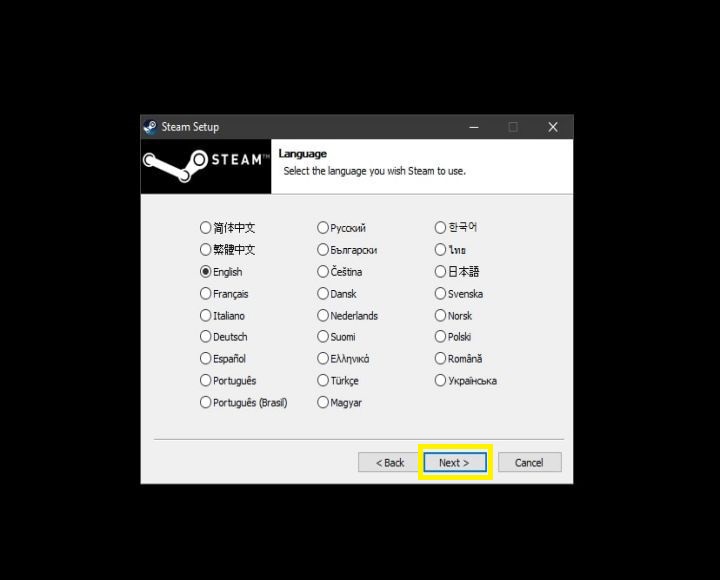

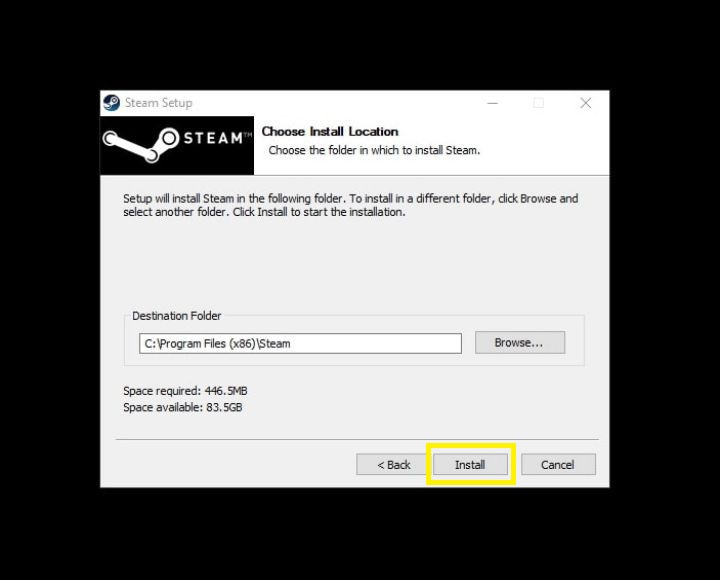
The Steam Setup program will launch, presenting you with options. First, choose your preferred language from the available options. Next, select the location where you want to install Steam on your computer. Once you’ve made these selections, click “Install” on the final page to begin the installation process.
Step 5: Complete the Installation
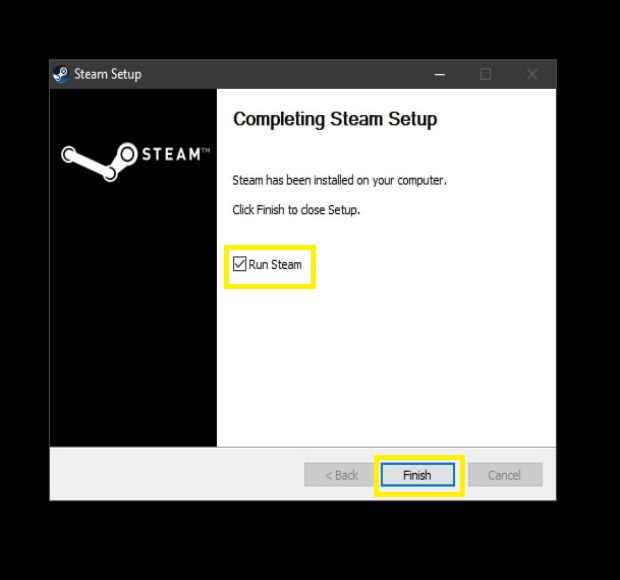
Wait for the installation process to complete. Once finished, click “Finish.” Steam will automatically open, and you’ll notice that the box next to “Run Steam” is checked. You can safely delete the Steam Setup file, as it is no longer needed.
Step 6: Sign in to Steam
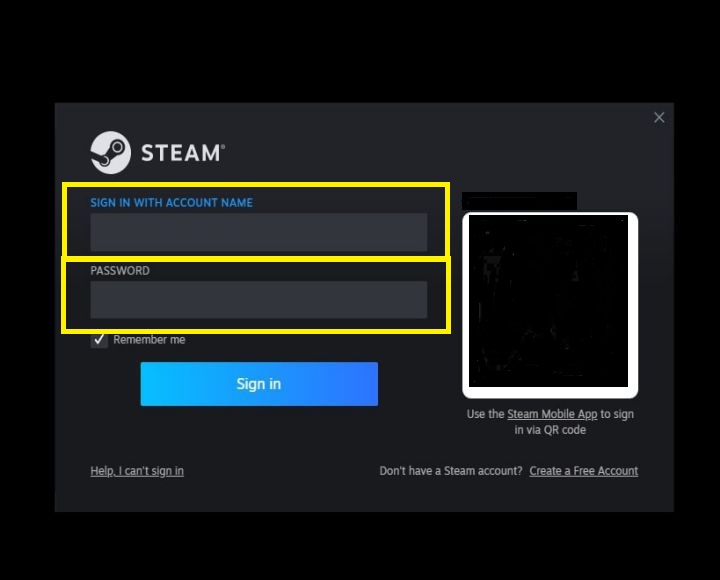
To start downloading games and exploring the wide array of options available on Steam, you’ll need to sign in with a Steam account. If you’re a new user, click “CREATE NEW ACCOUNT” and follow the prompts to create a new Steam account. If you already have a Steam account, click “LOGIN TO AN EXISTING ACCOUNT” and enter your credentials to sign in.
Congratulations! You’ve successfully downloaded and installed Steam on your Windows computer. Now it’s time to browse through the Steam Store tab and discover the vast collection of games available for you to enjoy.


You must log in to post a comment.